IPTV Setup on Smart TV
Complete guide to setting up IPTV on Samsung, LG, Sony, and other Smart TVs. Get started in under 5 minutes.
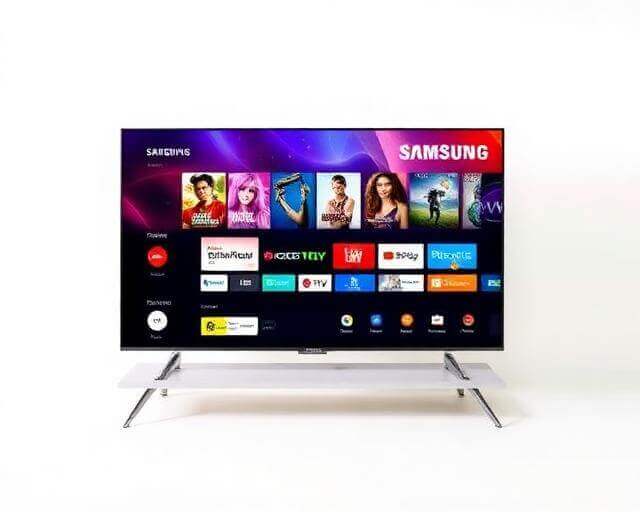
Before You Start
- An active IPTV subscription with login credentials
- A Smart TV connected to the internet (Wi-Fi or Ethernet)
- Access to your TV's app store (Smart Hub, LG Content Store, or Google Play Store)
Step-by-Step Installation
Open Your TV's App Store
Navigate to your Smart TV's app store. On Samsung, this is Smart Hub. On LG, open the LG Content Store. On Sony or other Android-based TVs, open the Google Play Store from the home screen.
Search for an IPTV Player App
Use the search function to find a compatible IPTV player. Popular options include IPTV Smarters Pro, TiviMate, or Smart IPTV. Choose one that supports your TV model and install it.
Launch the IPTV App
Once installed, open the app from your TV's app list. The first time you open it, you'll be prompted to enter your login credentials or playlist URL.
Enter Your Login Credentials
Input the username, password, and server URL provided with your subscription. Some apps also accept an M3U playlist URL — check your welcome email for details.
Browse & Start Watching
Once logged in, your channel list will load automatically. Browse by category, add favourites, and enjoy buffer-free streaming on the big screen.
Troubleshooting Tips
App not available in your TV's store?
Try sideloading via USB or use the Downloader app. Alternatively, connect an external streaming device like a Firestick.
Channels not loading after login?
Double-check your credentials and server URL. Ensure your internet connection is stable — we recommend at least 25 Mbps for 4K content.
Buffering or freezing issues?
Switch to a wired Ethernet connection for better stability. You can also try lowering the stream quality in the app settings.