IPTV Setup on MAG Box
Configure your MAG set-top box for IPTV streaming. Compatible with MAG 254, 256, 322, 324, 420, and newer models.
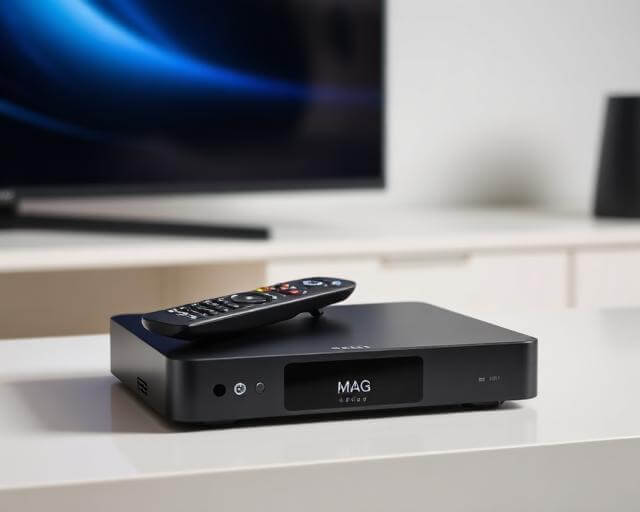
Before You Start
- An active IPTV subscription with a portal URL
- A MAG device connected to your TV via HDMI
- A stable internet connection (wired Ethernet recommended)
- Your MAG device's MAC address (found on the sticker on the bottom)
Step-by-Step Installation
Connect Your MAG Box
Plug in the HDMI cable from your MAG device to your TV. Connect the Ethernet cable (recommended) or set up Wi-Fi. Power on the device and wait for it to boot completely.
Access System Settings
On the MAG home screen, go to Settings (gear icon) → System Settings → Servers → Portals.
Enter Your Portal URL
In Portal 1 Name, type your provider name (e.g., 'IPTVShop'). In Portal 1 URL, enter the portal URL provided in your subscription email. Leave Portal 2 empty unless you have a backup URL.
Save and Restart
Press OK/Save to store the settings. Go back to the main menu and select 'Restart Portal' or power cycle the device. The MAG box will connect to the server and load your channels.
Navigate & Watch
Once loaded, you'll see your channel categories. Use the remote to browse channels, access the EPG (Electronic Program Guide), and manage favourites. Press OK to select a channel.
Troubleshooting Tips
Portal shows 'Authorization failed'?
Your MAC address may not be registered with your provider. Contact our support team with your MAC address (found on the bottom of the device) so we can activate it.
Stuck on loading screen?
Double-check the portal URL for typos. Ensure your internet connection is active. Try restarting the device by unplugging it for 30 seconds.
Remote control not responding?
Replace the batteries in your remote. Point it directly at the MAG box IR receiver. If using a Bluetooth remote, re-pair it from the system settings.