IPTV Setup on Android TV
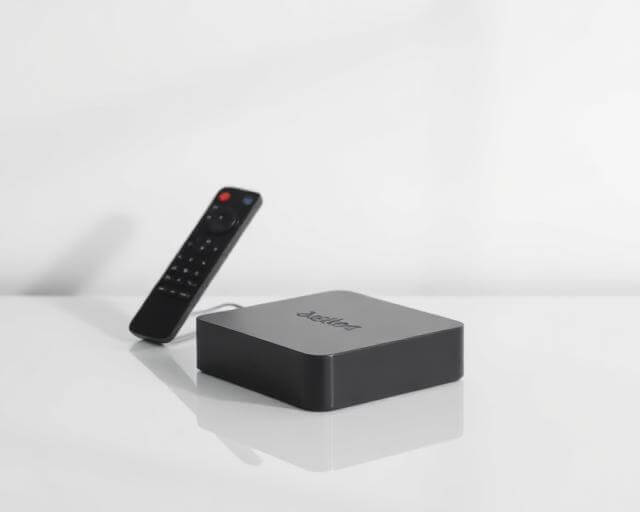
Set up IPTV on any Android TV box including NVIDIA Shield, Xiaomi Mi Box, and more.
Before You Start
- An active IPTV subscription with login credentials
- An Android TV device connected to the internet
- A Google account signed in on your device
Step-by-Step Installation
Open Google Play Store
From the Android TV home screen, navigate to the Google Play Store. If you don't see it, go to Apps and find it there.
Search for an IPTV Player
Search for 'IPTV Smarters Pro', 'TiviMate', or another recommended IPTV player. TiviMate is highly recommended for Android TV due to its EPG support and clean interface.
Install the App
Click Install and wait for the download to complete. The app will appear in your Apps list once installed.
Configure Your Subscription
Open the app and select 'Add Playlist' or 'Login'. Enter your Xtream Codes credentials (server URL, username, password) or M3U playlist URL from your subscription email.
Enjoy Your Channels
Your channel list and EPG (Electronic Program Guide) will load automatically. Browse live TV, movies, and series organised by category.
Troubleshooting Tips
App crashes on launch?
Clear the app cache from Settings → Apps → [App Name] → Clear Cache. If the issue persists, reinstall the app.
No EPG data showing?
Go to the app settings and refresh the EPG. Make sure your provider supports EPG data for your subscription.
Remote control navigation issues?
Some IPTV apps work better with a wireless mouse or the Android TV Remote app on your phone.