IPTV Setup on iPhone & iPad
Stream live TV on your iPhone or iPad with our easy iOS setup guide. Compatible with all iOS versions.
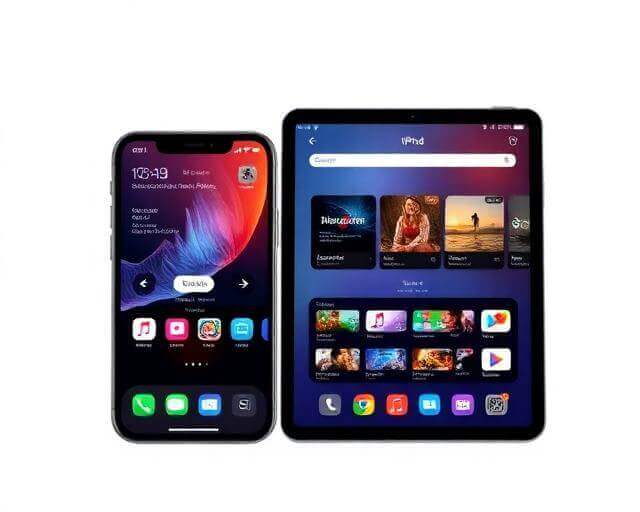
Before You Start
- An active IPTV subscription with login credentials
- An iPhone or iPad running iOS 14 or later
- A stable Wi-Fi or cellular data connection
Step-by-Step Installation
Open the App Store
Tap the App Store icon on your home screen. Make sure you're signed in with your Apple ID.
Search for an IPTV Player
Tap the Search tab and type 'IPTV Smarters' or 'GSE Smart IPTV'. Both are excellent choices for iOS with intuitive interfaces and AirPlay support.
Download & Install
Tap Get to download the app. You may need to authenticate with Face ID, Touch ID, or your Apple ID password.
Add Your Subscription
Open the app and choose 'Xtream Codes API' login. Enter the server URL, username, and password from your subscription email. Tap Add User to connect.
Watch Anywhere
Your channels are now ready. Use AirPlay to cast to your Apple TV, or watch directly on your device. Download the app on all your Apple devices — one subscription works everywhere.
Troubleshooting Tips
App removed from App Store?
Some IPTV apps get periodically removed. Try alternative apps like 'XCIPTV' or 'iPlayTV'. Check our WhatsApp support for the latest recommended app.
AirPlay not connecting?
Ensure your iPhone/iPad and Apple TV are on the same Wi-Fi network. Restart both devices and try again.
High data usage on cellular?
Go to the app settings and lower the stream quality to SD when on mobile data. HD streaming uses approximately 3 GB per hour.