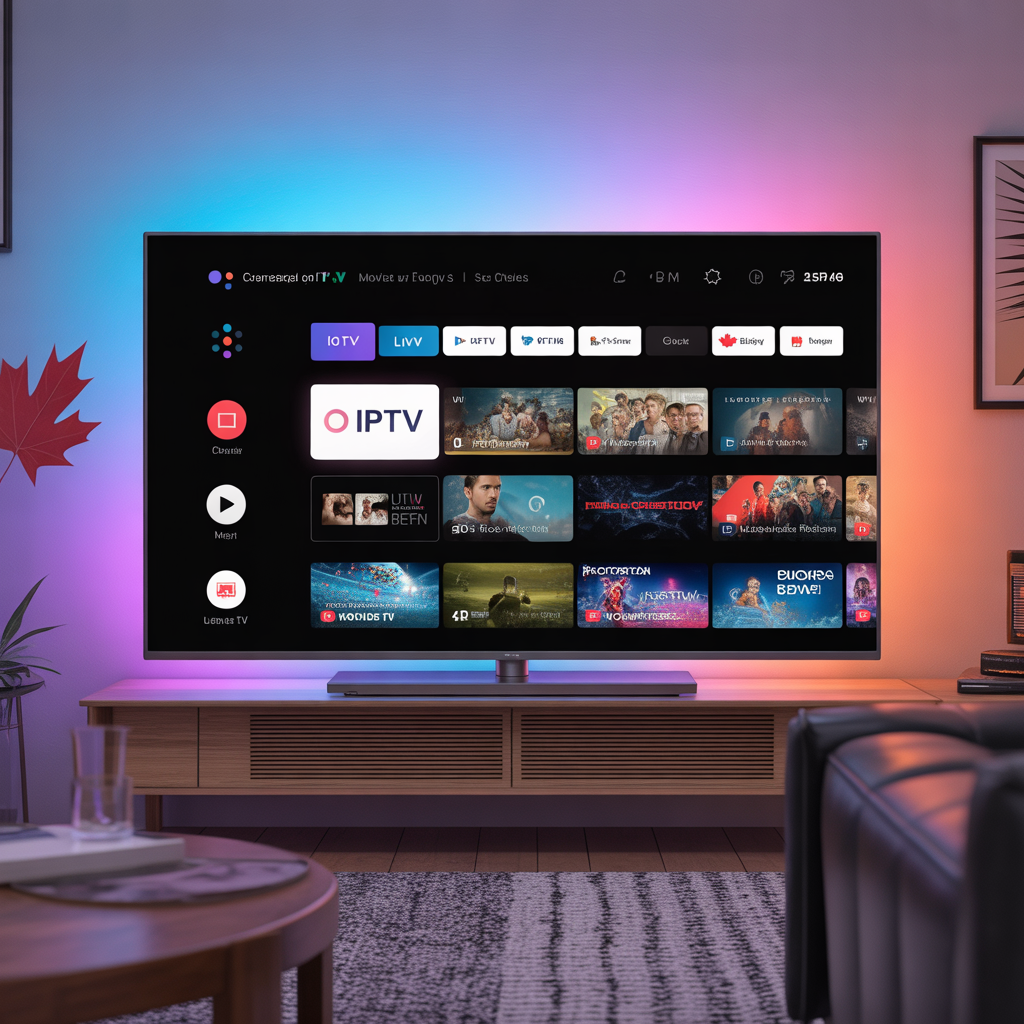
Got a Smart TV and want to ditch your cable subscription? You’re in the right place. In this 2025 guide, we’ll show you how to set up IPTV on any Smart TV in Canada — whether you have a Samsung, LG, Sony, Hisense, TCL, or any other brand. No technical experience needed.
whatsapp for contact : +33756758551
⏱️ Total setup time: 5 to 15 minutes depending on your TV brand
What You’ll Need Before You Start
- ✅ A Smart TV (any brand)
- ✅ A stable internet connection (25 Mbps+ recommended)
- ✅ An active IPTV subscription from IPTVShop.ca
- ✅ Your M3U URL or Xtream Codes login (sent by email after subscribing)
Quick Navigation — Jump to Your TV Brand
| TV Brand | Method |
|---|---|
| 📺 Samsung Smart TV | Smart Hub App |
| 📺 LG Smart TV | LG Content Store |
| 📺 Sony / Android TV | Google Play Store |
| 📺 Hisense / TCL | Android TV / Sideload |
| 📺 Any Smart TV | Via Firestick / Chromecast |
Samsung Smart TV — How to Install IPTV {#samsung}
Samsung Tizen TVs don’t support Google Play, so we use the Smart TV in Canada app or IPTV Smarters.
Method 1 — Smart IPTV App (Recommended)
- Press Home on your Samsung remote
- Go to Apps → Search for “Smart IPTV”
- Download and open the app
- Note the MAC address shown on screen
- Go to siptv.eu on your phone or computer
- Enter your MAC address and paste your M3U URL from IPTVShop.ca
- Click Save and refresh the app on your Smart TV in canada
✅ Channels will load automatically within 60 seconds
Method 2 — Samsung TV Plus / Browser M3U
- Open the Samsung Internet Browser on your Smart TV in canada
- Navigate to your IPTV provider’s web player URL
- Login with your Xtream Codes credentials from IPTVShop.ca
LG Smart TV — How to Install IPTV {#lg}
LG WebOS TVs support the LG Content Store which includes several IPTV apps.
Method 1 — SS IPTV App (Free)
- Press Home on your LG remote
- Open the LG Content Store
- Search for “SS IPTV”
- Download and open the app
- Go to Settings inside SS IPTV
- Select “Playlist” → “Add Playlist”
- Choose “Remote URL” and paste your M3U URL from IPTVShop.ca
- Click Save — your channels will load instantly ✅
Method 2 — IPTV Smarters on LG
- Open LG Content Store
- Search “IPTV Smarters”
- Install and open the app
- Select “Login with Xtream Codes”
- Enter your Username, Password, and Server URL from IPTVShop.ca
- Click Add User and wait for channels to load ✅
Sony / Android TV — How to Install IPTV {#sony}
Sony TVs run Android TV — the easiest platform for IPTV because it supports Google Play.
Method 1 — Google Play Store (Easiest)
- Press Home on your Sony remote
- Open the Google Play Store
- Search for “IPTV Smarters Pro” or “TiviMate”
- Click Install
- Open the app and select “Login with Xtream Codes”
- Enter your credentials from IPTVShop.ca:
- Username
- Password
- Server URL
- Click Add — done! ✅
Method 2 — Via M3U URL
- Install “GSE Smart IPTV” from the Play Store
- Open the app → go to Remote Playlists
- Tap the + icon and paste your M3U URL
- Save and enjoy your channels ✅
Hisense / TCL / Android TV Brands {#hisense}
Most Hisense and TCL TVs run Android TV — same steps as Sony above.
- Open Google Play Store on your TV
- Search and install IPTV Smarters Pro or TiviMate
- Login using your Xtream Codes or M3U URL from IPTVShop.ca
- Start streaming ✅
💡 If your Hisense/TCL doesn’t have Google Play, use a Firestick or Chromecast plugged into the HDMI port — see the universal method below.
Universal Method — Works on ANY Smart TV {#universal}
Don’t want to install apps directly on your TV? This method works on every TV brand without exception.
Option A — Amazon Firestick (Best Option)
- Plug a Firestick into your TV’s HDMI port
- Follow our Firestick IPTV setup guide
- Done — works on any TV, any brand, any year ✅
Option B — Google Chromecast
- Set up Chromecast on your TV
- Install IPTV Smarters on your phone
- Load your IPTVShop.ca playlist
- Tap the Cast icon to stream to your TV ✅
Option C — Screen Mirroring
- Install IPTV Smarters on your phone or tablet
- Use Screen Mirroring / AirPlay / Miracast
- Mirror your screen to the TV and enjoy ✅
Best IPTV Apps for Smart TV in Canada (2025)
| App | Compatible TVs | Format | Best For |
|---|---|---|---|
| IPTV Smarters Pro | All Android TVs, LG | M3U + Xtream | Best overall |
| TiviMate | Android TV only | M3U + Xtream | Power users |
| Smart IPTV | Samsung, LG | M3U | Simple setup |
| SS IPTV | LG WebOS | M3U | LG users |
| GSE Smart IPTV | Android TV | M3U | Multi-playlist |
| Duplex Play | Android TV, LG | M3U + Xtream | Clean UI |
Tips for the Best Smart TV in canada IPTV Experience in Canada
📡 Connection Tips
- Ethernet > WiFi — always use a wired connection if possible
- If using WiFi, connect to the 5GHz band (not 2.4GHz)
- Minimum 25 Mbps for 4K streams, 10 Mbps for HD
⚡ Performance Tips
- Restart your Smart TV once a week to clear memory
- Close unused apps running in the background
- Keep your TV firmware updated for best app compatibility
🚫 Fixing Buffering Issues
- Switch from WiFi to ethernet cable
- Contact your ISP if they throttle streaming traffic
- Use a VPN (like ExpressVPN) to bypass ISP restrictions in Canada
Troubleshooting Common Smart TV IPTV Issues
| Problem | Solution |
|---|---|
| App not found on store | Use Firestick or Chromecast instead |
| M3U URL not loading | Double-check URL — no spaces or typos |
| Channels freezing | Switch to ethernet or upgrade internet plan |
| App crashing on startup | Clear cache or reinstall app |
| No picture / black screen | Change stream quality to HD instead of 4K |
| Xtream Codes not working | Verify username, password & server URL with provider |
🏆 Why IPTVShop.ca Is the #1 Choice for Smart TV in Canada
IPTVShop.ca is fully optimized for all Smart TV brands available in Canada:
- ✅ Compatible with Samsung, LG, Sony, Hisense, TCL & more
- ✅ Supports M3U URL & Xtream Codes — works with every IPTV app
- ✅ 15,000+ live channels — CBC, CTV, TSN, Sportsnet, TVA & more
- ✅ 4K & Full HD quality with zero buffering
- ✅ 20,000+ movies & series on demand
- ✅ Up to 5 simultaneous connections
- ✅ 24/7 support — live chat & email
- ✅ Plans starting at just $15 CAD/month
- ✅ Free 24-hour trial — no credit card required
👉 Start Your Free Trial at IPTVShop.ca →
Frequently Asked Questions
Can I install IPTV directly on my Samsung Smart TV? Yes. Samsung TVs support apps like Smart IPTV through the Samsung App Store. Alternatively, you can plug a Firestick into the HDMI port for even more app options.
What is the best IPTV app for LG Smart TV in Canada? SS IPTV and IPTV Smarters Pro are the top choices for LG WebOS Smart TVs in Canada. Both support M3U and Xtream Codes formats.
Do I need to jailbreak my Smart TV to use IPTV? No. Most Smart TVs support IPTV apps natively through their app stores. No jailbreaking is needed.
What internet speed do I need for IPTV on Smart TV? At least 10 Mbps for HD channels and 25 Mbps for 4K streams. Most Canadian home internet plans easily support this.
Can I use the same subscription on my Smart TV and phone? Yes — IPTVShop.ca plans support up to 5 simultaneous connections, so you can use the same subscription on your TV, phone, tablet, and more at the same time.
Is IPTV legal on Smart TV in Canada? Using IPTV apps on Smart TV in Canada is completely legal. The key is choosing a responsible provider. IPTVShop.ca operates transparently and serves Canadian subscribers reliably.
Final Thoughts
No matter what Smart TV brand you have, setting up Smart TV in Canada is simpler than you think. Samsung, LG, Sony, Hisense — this 2025 guide covers them all. In just a few minutes, you can replace your cable box and start streaming thousands of live channels and on-demand content.
Try IPTVShop.ca free for 24 hours → — works on every Smart TV brand, no credit card needed.